GIF Maker, GIF Editor
GIF Maker & GIF Editor & Video MakerPhotography
4.79.88K Reviews
- Version
- Varies With Device
- Installs
- 10.00M
- Age Rating
- Everyone
Screenshots
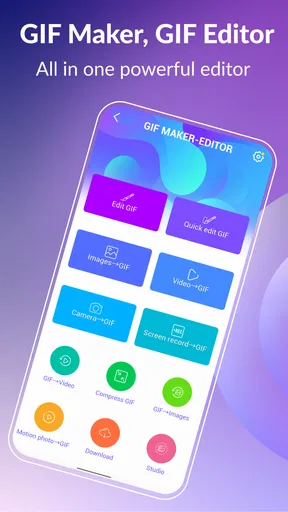
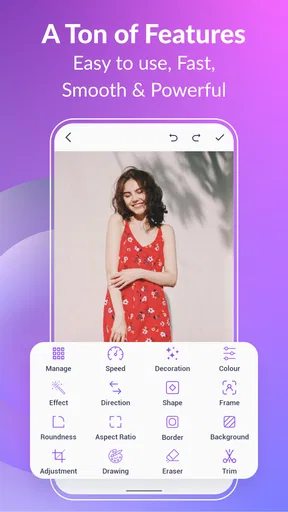
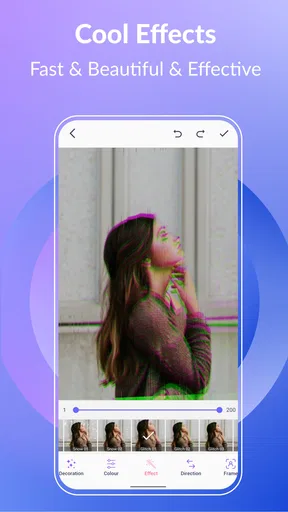
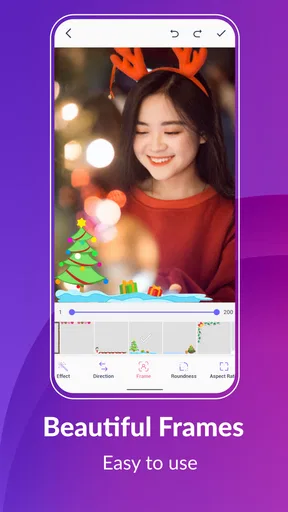
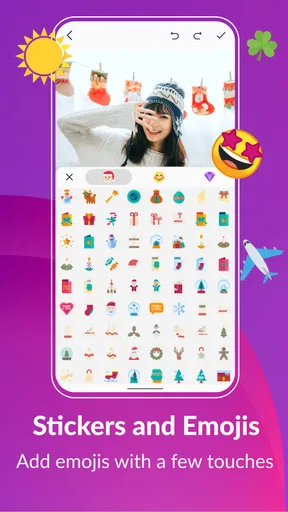
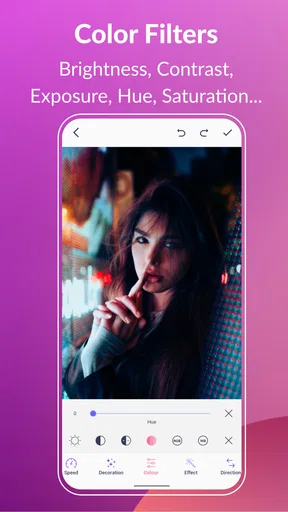
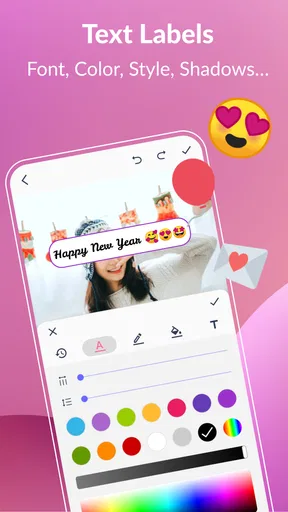
Our Review of GIF Maker, GIF Editor
 Analysis by Appyee
When I want to turn a few photos or a short clip into something easy to share, I usually prefer a focused tool over a full video editor. GIF Maker, GIF Editor fits that role well. It is a photography app from GIF Maker & GIF Editor & Video Maker, built around creating and adjusting animated GIFs rather than making me learn a large editing suite. After spending time with it, I found the appeal straightforward: the workflow is approachable, the result is designed for quick sharing, and the free version does not place a watermark on the finished animation.
That simplicity is also the key to deciding whether it belongs on your phone. If you regularly make reaction GIFs, animated posts, looping instructions, or small visual jokes from your own media, it is a practical choice. If you need advanced color grading, detailed motion graphics, professional audio editing, or a complete social-video production environment, I would look elsewhere. This is a dedicated GIF workspace, not an all-purpose replacement for a serious editor.
What using the app feels like in everyday work
The first thing I noticed is that the app makes the starting point clear: I can work from images or video. That matters because these two jobs often need different thinking. A group of photos is useful for a stop-motion-style sequence, a before-and-after comparison, or a quick animated greeting. A video is better when I want to isolate a funny reaction, a gesture, or a short moment from a longer recording.
For a normal day-to-day example, imagine taking several photos of a recipe while preparing dinner. Instead of sending a long explanation, I could combine the images into a compact loop showing the stages. The same approach works for a craft project, a small product demonstration, or a visual reminder for someone who does not want to open a full video. The app is most useful when the message is visual and brief.
Another realistic use is cleaning up a clip before sharing it in a chat. I might record a dog jumping for a toy, select the interesting portion, and turn it into a loop that is easier to replay than the original video. That kind of task does not justify opening a desktop editor. A dedicated GIF tool keeps the process centered on the final format.
The application is free to install, with optional in-app purchases priced at $1.99 per item. I see that as a reasonable entry point for someone who wants to test the workflow before spending anything. The important question is not simply whether it costs nothing to begin, but whether the free experience covers the kind of GIFs you intend to make. Casual users will probably get the most value without treating it as a subscription-style creative platform.
Its age rating is Everyone, which matches the basic nature of the tool. That does not determine what a person chooses to create with it, but it does make the app feel suitable for ordinary family, school, hobby, and personal projects. I would still supervise younger users when they are selecting photos or videos to share, because the privacy decision comes from the media itself rather than from the editing process.
Where it sits among familiar alternatives
Compared with a regular video editor, this app feels less intimidating and more direct. A video editor may offer timelines, audio tracks, transitions, captions, and export choices that are useful for a polished movie but excessive for a looping reaction. GIF Maker, GIF Editor is better when the destination is already clear and I want fewer decisions between the source file and the finished animation.
Compared with a camera or messaging app that happens to create GIFs, the dedicated approach is more useful when I want to adjust the source before sharing. The trade-off is that I should not expect the broader creative ecosystem of a full social platform. I am choosing a focused utility, not a place to discover content, collaborate with a community, or manage a complete media library.
It also differs from online GIF converters. A phone-based workflow is convenient when I am working with personal photos or a private clip and do not want to move the file through a browser service. On the other hand, people who need a highly controlled production pipeline, batch processing, or precise desktop-level editing may find a computer tool more comfortable. The app wins on immediacy, not on replacing every other method.
Practical ways to get better results
My first useful tip is to choose the source with the loop in mind. A GIF works best when the beginning and ending do not feel like two unrelated moments. With photos, I would arrange them so the visual change progresses naturally. With video, I would look for a short action that can repeat without an awkward jump. This planning makes a bigger difference than adding decorative effects after the fact.
A second tip is to keep the animation focused on one idea. If I include every part of a long recording, the result becomes harder to understand and less pleasant to replay. Cropping the story to the essential movement usually produces a more effective GIF than trying to preserve the entire clip. The app makes sense for compact visual communication, so I treat brevity as part of the editing process.
A third insight concerns photos that were not taken with animation in mind. I can use a sequence of similar images, but the result may look jerky if the camera position changes too much. For a smoother effect, I would either take the images from a stable position or choose frames with consistent composition. This is especially important for tutorials and product demonstrations, where the viewer needs to notice the action rather than the camera movement.
When I am preparing something for a chat, I also think about readability on a small screen. Fine details can disappear when the animation is viewed in a conversation window. I would favor a clear subject, strong separation between the subject and background, and a simple sequence over a crowded composition. That is not a special button or hidden mode; it is a practical editing habit that helps the app’s output work outside the editor.
Watermarks, sharing, and the point of the free version
One of the strongest practical advantages is that the app is intended to create GIFs without watermarks. For me, that changes the result from a disposable test into something I can actually send to a friend or use in a personal post. A visible brand mark can distract from a joke or make a small instructional animation look unfinished, so avoiding it is meaningful.
Still, watermark-free output does not automatically mean unlimited creative control. I would judge the app by the complete workflow: how easily I can select media, shape the animation, preview it, and save the result in a useful form. Someone deciding whether to buy an optional item should first identify the specific part of the process that matters to them instead of assuming every extra is necessary.
The absence of a required payment at the starting point is helpful for occasional users. I can make a few animations for a birthday message, a school project, or a private group without committing to a larger editing package. For frequent creators, the optional purchases may become more relevant, but I would still compare the value of those items with the cost and flexibility of a broader editor before paying.
Trust, permissions, and moments that deserve care
For a media-making app, trust is less about a slogan and more about the choices I can see while using it. The sensitive moments happen when I select personal photos, import a private video, save a finished file, or prepare something for sharing. I try to pause at each stage and check exactly which item I am working with, especially when my gallery contains family images or work material.
I do not treat the Everyone rating as a substitute for careful media handling. A harmless editing tool can still be used with sensitive content, and the responsibility begins with the source files I choose. My own habit is to avoid importing anything that contains private documents, visible addresses, confidential screens, or people who have not agreed to be recorded. That is sensible whether I use this app or another editor.
Visible user control matters to me. I want to know which image or video I selected, whether I am editing the original or producing a new result, and when the final file is ready to share. I also prefer reviewing the finished animation before sending it, because a short loop can reveal a frame I did not notice during selection. That preview step is especially valuable when the source is a longer video.
Account control is another part of the decision. I prefer tools that let me work on a straightforward personal project without making the account itself the center of the experience. When I use any app involving personal media, I pay attention to whether a sign-in is requested, what choices appear around sharing, and whether I can stop before publishing. Those are the moments where user agency matters most.
I also recommend checking the app’s current permission prompts on the device before granting access. Permission screens can vary by operating system and device settings, so I do not assume that an old explanation applies to my phone. I grant only what is needed for the task I am performing, and I revisit access later if the project is finished. This is a simple way to keep control over a photo-focused app.
Limitations I would consider before installing
The narrow focus can feel limiting if your project is more ambitious than a GIF. I would skip this app when I need a carefully mixed soundtrack, a long narrative, multiple layers of timed text, or a polished vertical video with extensive transitions. Those jobs belong in a video editor designed around a broader timeline. Converting the final result into a GIF may be useful afterward, but it should not be the entire production plan.
GIFs themselves also have technical trade-offs. A visually rich animation can become heavy, while a very small file may lose detail or smoothness. The app is convenient for short loops, but I would not use the format for every situation. If the recipient needs clear spoken instructions, a normal video is usually better. If the image must remain crisp for printing, a still image may be the smarter choice.
There is also a creative limitation in the format: repeated motion can become distracting. I try to make the loop short enough to communicate its point without becoming annoying. For a reaction, that may be perfect. For an instructional sequence, I would check that the repetition does not hide the order of events. The app can help create the animation, but it cannot decide whether a GIF is the right communication format.
People who work with large collections of source files may prefer a more organized media workflow. A focused mobile tool is excellent for selecting a few items quickly, but a desktop application may be easier when I need to label, compare, archive, and revise many versions. I would also choose a different solution if my work depends on exact export specifications or a repeatable professional pipeline.
Who will get the most from it
I think this app is a good match for casual creators, students, families, hobbyists, and social users who want to make a loop from material already stored on a phone. It is especially appealing to someone who finds full video editors overwhelming but still wants more control than a one-tap camera feature provides. The focused design gives the task a clear purpose.
It can also suit small practical projects. A shop owner might create a short product movement for a message, a teacher could demonstrate a simple hand action, or a hobbyist could show a miniature build progressing through several images. In each case, the strength is the same: turning a small amount of visual material into something immediately understandable.
I would recommend skipping it if your priority is professional post-production, detailed sound work, complex typography, or managing a large collaborative media library. I would also skip it if you mainly want to watch or discover GIFs rather than create them. This is a making tool, and its value depends on having a clear reason to produce animated images.
My cautious verdict after using it
With a 4.7 average from around 337 thousand ratings and more than 10 million installs, GIF Maker, GIF Editor has clearly reached a large audience. Those figures tell me it is established enough to be worth trying, but they do not replace my own test of whether its workflow suits a particular project. The app has been available since August 2, 2017, so it is not a brand-new experiment in the photography category.
My recommendation is positive but specific. I would install it when I need a quick way to turn photos or a video moment into a clean, shareable GIF, especially when I want to avoid a watermark and do not need a complete video studio. I would start with the free experience, review each media choice carefully, and decide about the $1.99 optional items only after identifying a real need.
The best reason to choose this app is control without unnecessary complexity. I can keep the project small, inspect the result before sharing, and avoid bringing a full editing suite into a simple task. Its limitations are real, but they are easier to accept when I use it for what it does best: making focused animated images from everyday photos and videos while keeping the process approachable.
Verdict
Strengths of GIF Maker, GIF Editor
- Turns videos and photos into GIFs quickly
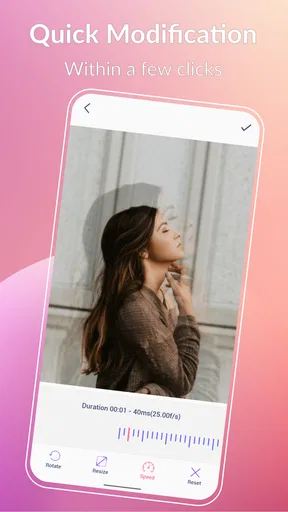
- Includes trimming, cropping, and speed controls
- Supports text, stickers, filters, and emojis
- Simple interface suitable for beginners
- Lets you share finished GIFs directly to social apps
Limitations of GIF Maker, GIF Editor
- Some advanced tools may require in-app purchases
- Exported GIFs can become large and use storage
- Ads may interrupt editing in the free version
- Quality may drop when compressing longer videos
- Limited control over precise frame-by-frame editing
Similar Picks in This Category
View All
Google Photos
Google LLC4.4

Gallery
Google LLC4.2

Picsart AI Photo Editor, Video
PicsArt, Inc.3.9

B612 AI Photo&Video Editor
SNOW Corporation4.1

BeautyPlus-Selfie Photo Editor
PIXOCIAL TECHNOLOGY (SINGAPORE) PTE. LTD.4.5

Remini - AI Photo Enhancer
Bending Spoons4.1
Frequently Asked Questions
What is GIF Maker, GIF Editor, and what can I use it for?
GIF Maker, GIF Editor is a creative tool for producing animated GIFs from photos, videos, screen recordings, or existing GIF files. During testing, it proved useful for turning short clips into shareable animations, creating reaction GIFs, and adding personal touches to social media content. Depending on the version, users can also crop, resize, rotate, reorder frames, and export finished projects for use in messaging apps or online platforms.
Can I create a GIF from both photos and videos?
Yes, the app is generally designed to support multiple source formats, including image sequences and video clips. You can select several photos to build a frame-by-frame animation or import a video and trim the section you want to convert. Before starting, check the available permissions and supported formats on your device, because compatibility and maximum video length may vary between Android and iOS versions.
What editing tools are available for customizing GIFs?
GIF Maker, GIF Editor typically includes practical editing features such as trimming, cropping, resizing, changing playback speed, adjusting frame order, and adding text, stickers, emojis, or filters. These tools make it possible to create a more personalized result without using a separate editor. However, advanced functions may be limited in the free version, and some effects or export options could require an in-app purchase.
Does GIF Maker, GIF Editor add a watermark or reduce the export quality?
The presence of a watermark and the final image quality can depend on the app version, selected export settings, and whether premium features are enabled. In testing, users should carefully review the preview and export screen before saving, especially when preparing content for professional or public use. Free exports may use compression, lower resolution, or branding, while paid options may provide cleaner and sharper results.
Is GIF Maker, GIF Editor free to download, and does it require internet access?
The application may be free to download, but it can include advertisements, optional subscriptions, or one-time purchases for premium tools. Basic editing is often available offline after installation, which is convenient when working with files already stored on your device. Internet access may still be needed for advertising, cloud-related features, sharing integrations, updates, or downloading additional effects, so usage can differ depending on the features you select.
